

Blog
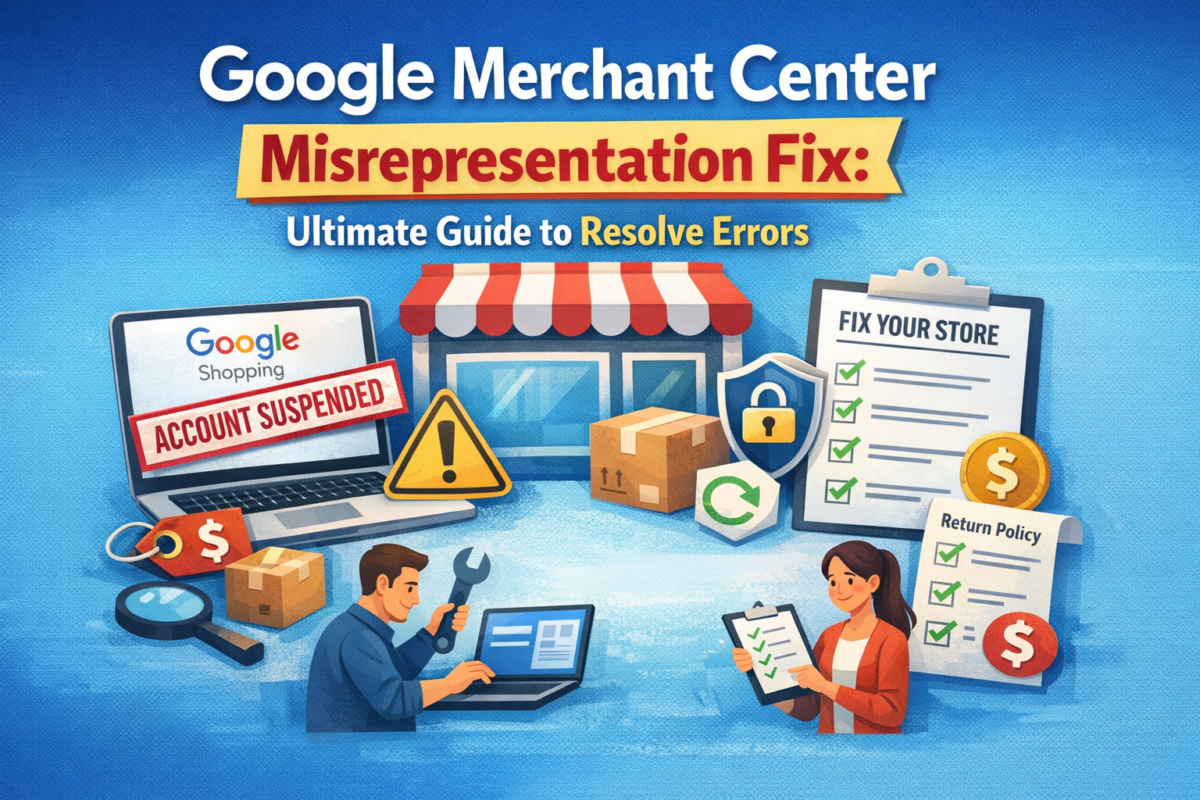
Google Merchant Center Misrepresentation Fix: Ultimate Guide to Resolve Errors
Mar
If you use Google Merchant Center to sell products, you may face some problems. One common problem is called “misrepresentation.” It means Google thinks your store or products are not honest or clear. This can stop your ads and lower your sales. But don’t worry. This article will help you understand what misrepresentation means and how to fix it.
What is Google Merchant Center Misrepresentation?
Google Merchant Center is a tool to show your products on Google. It helps people find your products faster. But Google wants all sellers to be honest and clear. If Google thinks you are not honest, it will say you have “misrepresentation.”
Misrepresentation means Google believes:
- Your product information is wrong or unclear.
- Your website is not safe or does not work well.
- You hide important details about your products.
- Your business is not real or trustworthy.
If Google finds these problems, it will stop your ads. This means fewer people will see your products. You need to fix the issues quickly to start your ads again.
Credit: www.amazon.com
Why Does Google Care About Misrepresentation?
Google wants to keep buyers safe. They want people to trust the ads and shops on Google. If a shop is not honest, people will stop using Google. So, Google checks your store to make sure it is real and clear.
Google uses rules to check your store. If you break the rules, your account may get suspended. This means your ads will stop running. Fixing misrepresentation problems helps you stay on Google and keep customers.
Common Reasons for Misrepresentation
Let’s look at some common reasons Google says you have misrepresentation. Knowing these reasons helps you avoid mistakes.
| Reason | Explanation |
| Wrong Product Information | Details like price, description, or availability do not match reality. |
| Broken or Unsafe Website | Website does not work well or does not have secure connections (HTTPS). |
| Hidden Costs | Extra fees or shipping costs are not shown clearly. |
| No Clear Contact Information | Buyers cannot find ways to contact you, like phone or email. |
| Fake or Misleading Business | Google thinks your business is fake or hides important facts. |
| Unclear Return or Refund Policy | Customers do not know if they can return items or get money back. |
How to Fix Misrepresentation in Google Merchant Center
Fixing misrepresentation is simple if you follow the right steps. Here is a clear guide to help you fix the issue fast.
1. Check Your Product Information
Make sure your product details are correct. Check prices, descriptions, and availability. If something is wrong, fix it.
- Use clear and simple descriptions.
- Show the correct price and any discounts.
- Update stock status often.
2. Make Your Website Safe And Easy To Use
Your website should work well on all devices. Also, use HTTPS to keep your site safe.
- Fix broken links or buttons.
- Use a secure connection (HTTPS).
- Make sure your site loads fast.
3. Show All Costs Clearly
Tell customers about all prices. This includes shipping or taxes. Do not hide any fees.
- Show shipping costs before checkout.
- Include taxes in the price or show them clearly.
4. Provide Clear Contact Information
Buyers need to contact you easily. Add your phone, email, or chat options on your site.
- Place contact info in the footer or header.
- Use a contact page with a form or email address.
5. Be Honest About Your Business
Google wants real businesses. Show your business name, address, and registration if possible.
- Add your business address on the website.
- Use a professional email address with your domain.
- Provide clear policies about your business.
6. Write A Clear Return And Refund Policy
Customers want to know if they can return products. Make your policy easy to find and understand.
- Explain the return process step by step.
- Show how long customers have to return items.
- Explain refund methods and times.
How to Request a Review After Fixing
After fixing your issues, you must ask Google to review your account. This is called an appeal.
Follow these steps:
- Log in to your Google Merchant Center account.
- Find the message about misrepresentation.
- Click on the option to request a review.
- Explain clearly what you fixed.
- Submit your appeal and wait for Google’s reply.
Google will check your store again. If they see the problems are fixed, your ads will start again.
Tips to Avoid Misrepresentation in the Future
Once your account is active, keep it that way. Follow these tips to avoid problems later.
- Update product details regularly.
- Keep your website safe and fast.
- Be honest and clear about your products and business.
- Show all costs and policies openly.
- Respond quickly to customer questions or complaints.
Credit: www.youtube.com
Summary
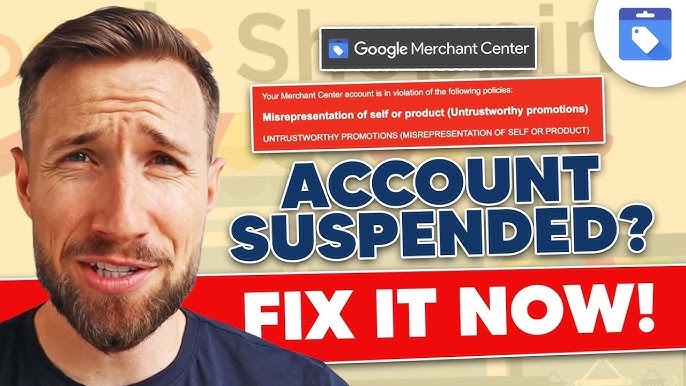
Misrepresentation means Google thinks your store is not honest or clear. This can stop your ads. Fixing misrepresentation is important to sell your products on Google.
Check your product info, make your website safe, show all costs, and provide contact info. Be honest about your business. Write clear return policies. Then ask Google to review your store again.
Follow these steps to keep your Google Merchant Center account healthy. This helps more people see your products and buy from your store.
Frequently Asked Questions
What Causes Google Merchant Center Misrepresentation Issues?
Misrepresentation happens when product info is false or misleading. It can also occur if your site policies are unclear or missing.
How Can I Fix Misrepresentation In Google Merchant Center?
Review your product details for accuracy and update any wrong info. Make sure your website has clear return and refund policies.
How Long Does Google Take To Review Misrepresentation Fixes?
Google usually reviews your changes within three to five business days. Faster reviews happen if all info is clear and correct.
Can Misrepresentation Affect My Google Shopping Ads?
Yes, it can suspend your account or stop your ads from showing. Fixing issues quickly helps bring your ads back live.
